Workforce platform for distributed teams
I designed this product from zero to launch: one place to see and manage everyone who works for a company, their teams, vendors and time.
Companies with distributed teams need to see who is working on what, for whom, and how much capacity is left.
The product is about understanding your workforce: adding and managing your people and vendors, seeing which projects and clients they work on, who is away, and where the team is overloaded or free. Time tracking, approvals, time off and reports feed that picture.
Employees, contractors and vendors report hours, managers approve them, and admins run the workspace and plan who works where.
- Dashboard
- TimesheetChallenge 01
- Time report: one project
- Time report: several projects
- Overtime
- Jira tickets
- Corrections
- Time off
- Vacation request
- Sick leave
- Days left
- Holiday calendar
- Settings
- My profile
- Dashboard
- Resources
- Time reports
- Approve weeksChallenge 02
- Time-off approval
- Own timesheet
- Own time off
- Settings
- My profile
- Dashboard
- Onboarding
- Resources
- Vendors
- Clients
- Projects
- Time reports
- Timesheets
- Vacations and sick leave
- Reports
- Settings
- Integrations: Teams, Jira
- My profile
- Dashboard
- Tenants
- Settings
- My profile
One month, five levels.One rule for all of them.
A month of work is a tree
It looks like a calendar, but entries sit inside projects, projects inside days, days inside weeks, weeks inside the month.
One day, two projects
On 1 November this contractor logged time on two projects. Brightpath was rejected and needs to be fixed, Lumen is approved. Each entry shows its own status, and the day gets a red outline and a red “2h”: the hours that still need fixing.
One open entry keeps everything above it open
The rejected entry keeps the day open, the day keeps the week open, and the month carries “Resubmission required” until it is fixed.
Every total says what it counts
Reported, Limit and Overtime are three labelled numbers, each split by project. No “120h (+8h)” to decode, because these numbers end up on invoices.
Day total first, then the project
Each entry opens a time report for one project on one day. With one project there is a single report total. When the day holds two projects, it shows two labelled totals: the day total for context, then the total for this project. Meetings come in from the Teams calendar, and people untick the ones they missed. Overtime is its own entry, never folded into the hours.
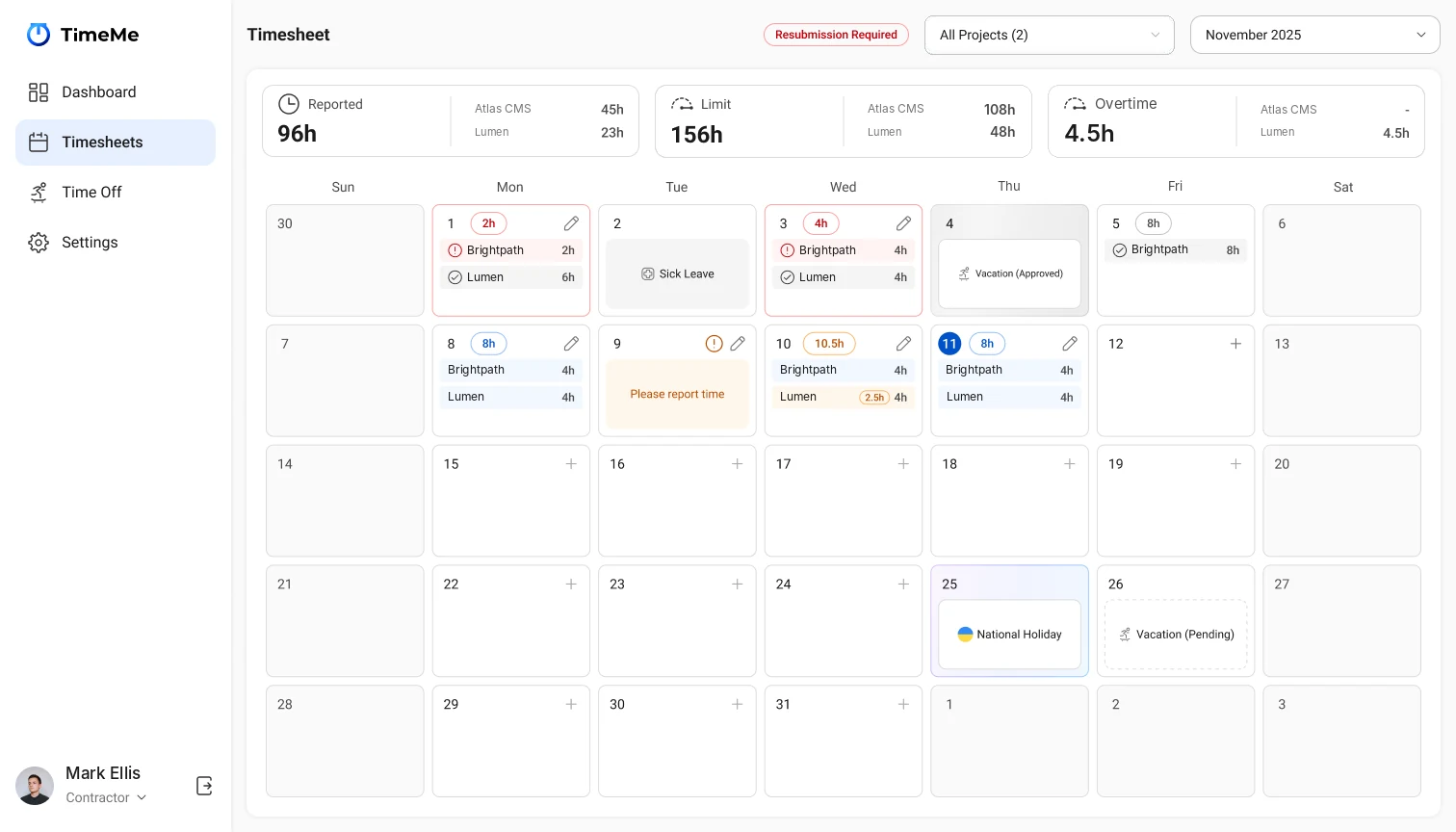 RejectedApprovedDay · not doneWeek · openMonth · resubmission requiredReported · what was loggedLimit · what is allowedOvertime · only what goes over
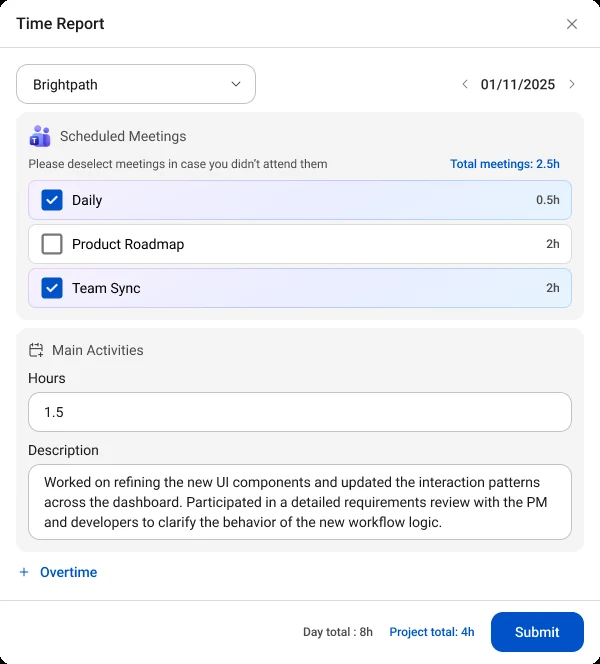 From Teams calendarIts own entryDay total, then project
One month, five levels.One rule for all of them.
A month of work is a tree
It looks like a calendar, but entries sit inside projects, projects inside days, days inside weeks, weeks inside the month.
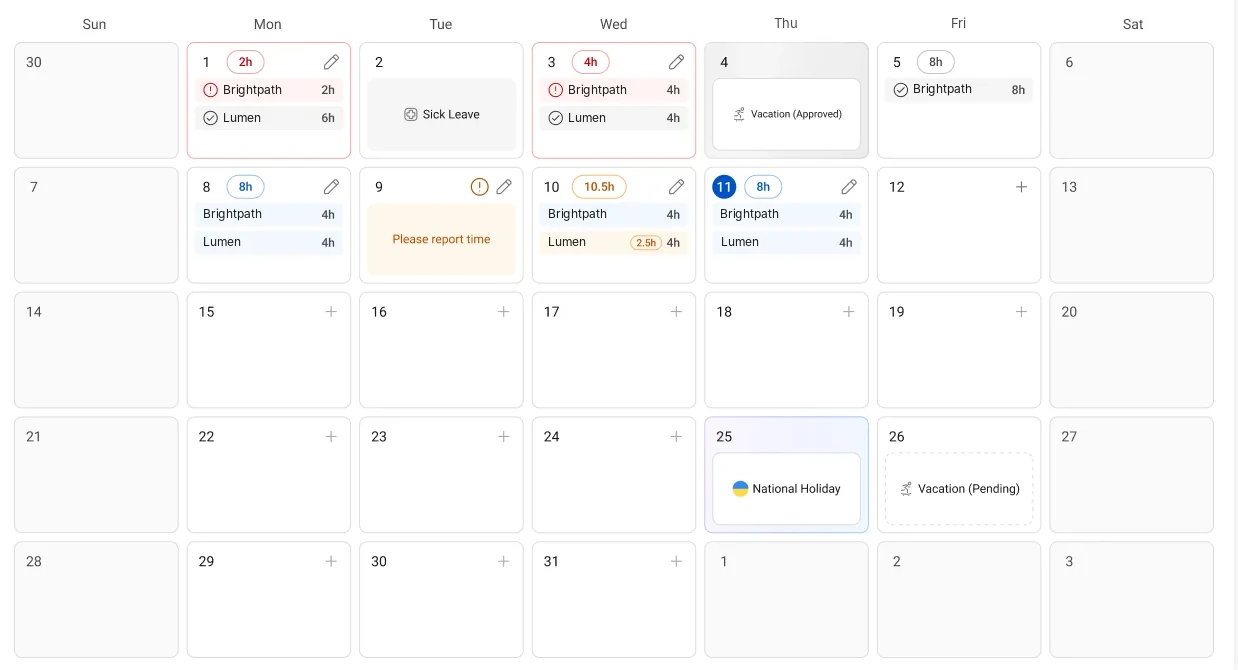
One day, two projects
On 1 November this contractor logged time on two projects. Brightpath was rejected and needs to be fixed, Lumen is approved. Each entry shows its own status, and the day gets a red outline and a red “2h”: the hours that still need fixing.
One open entry keeps everything above it open
The rejected entry keeps the day open, the day keeps the week open, and the month carries “Resubmit” until it is fixed.
Every total says what it counts
Reported, Limit and Overtime are three labelled numbers, each split by project. No “120h (+8h)” to decode, because these numbers end up on invoices.
Day total first, then the project
Each entry opens a time report for one project on one day. With one project there is a single report total. When the day holds two projects, it shows two labelled totals: the day total for context, then the total for this project. Meetings come in from the Teams calendar, and people untick the ones they missed. Overtime is its own entry, never folded into the hours.
Approve by week,in the view that fits.
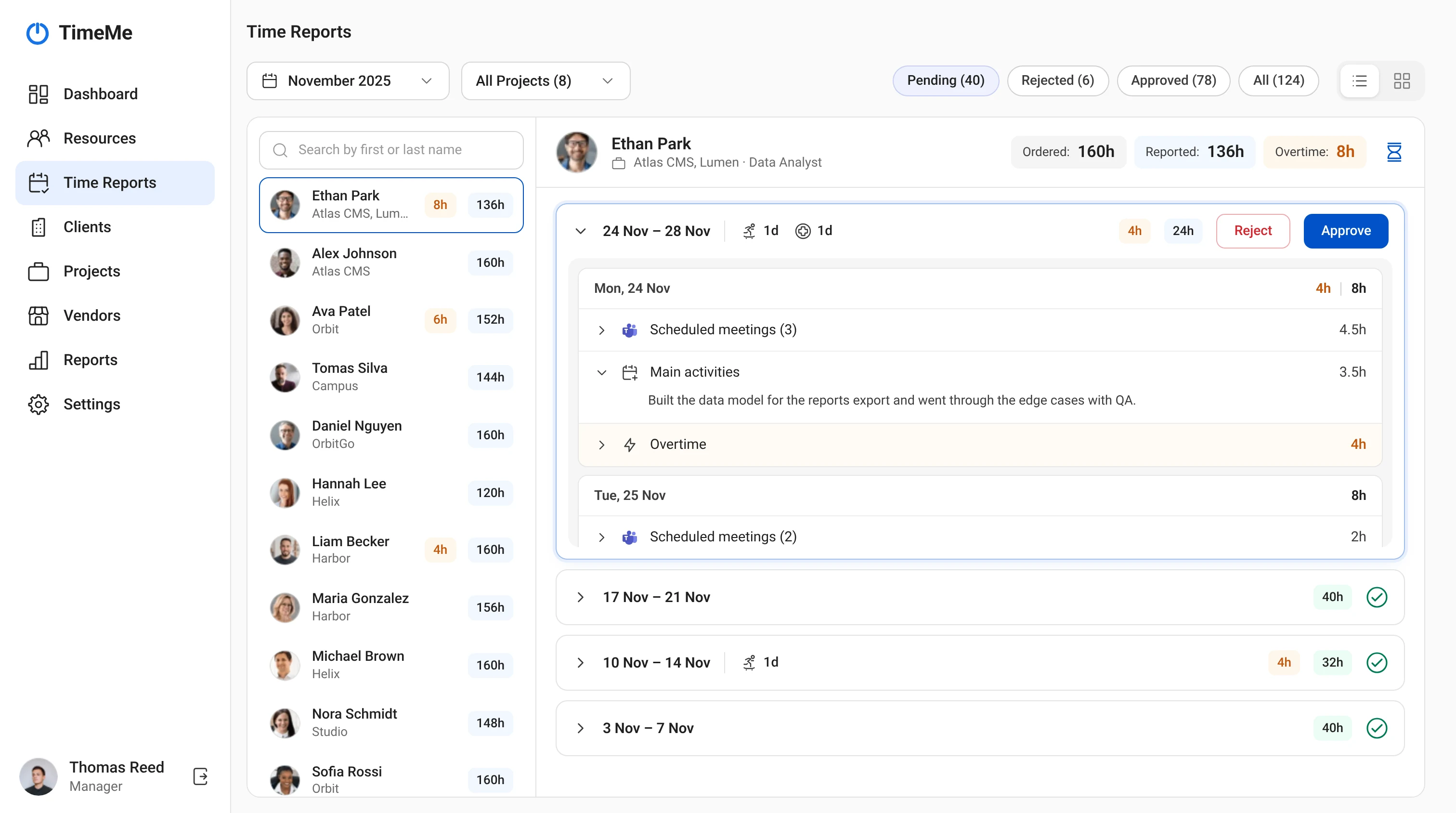
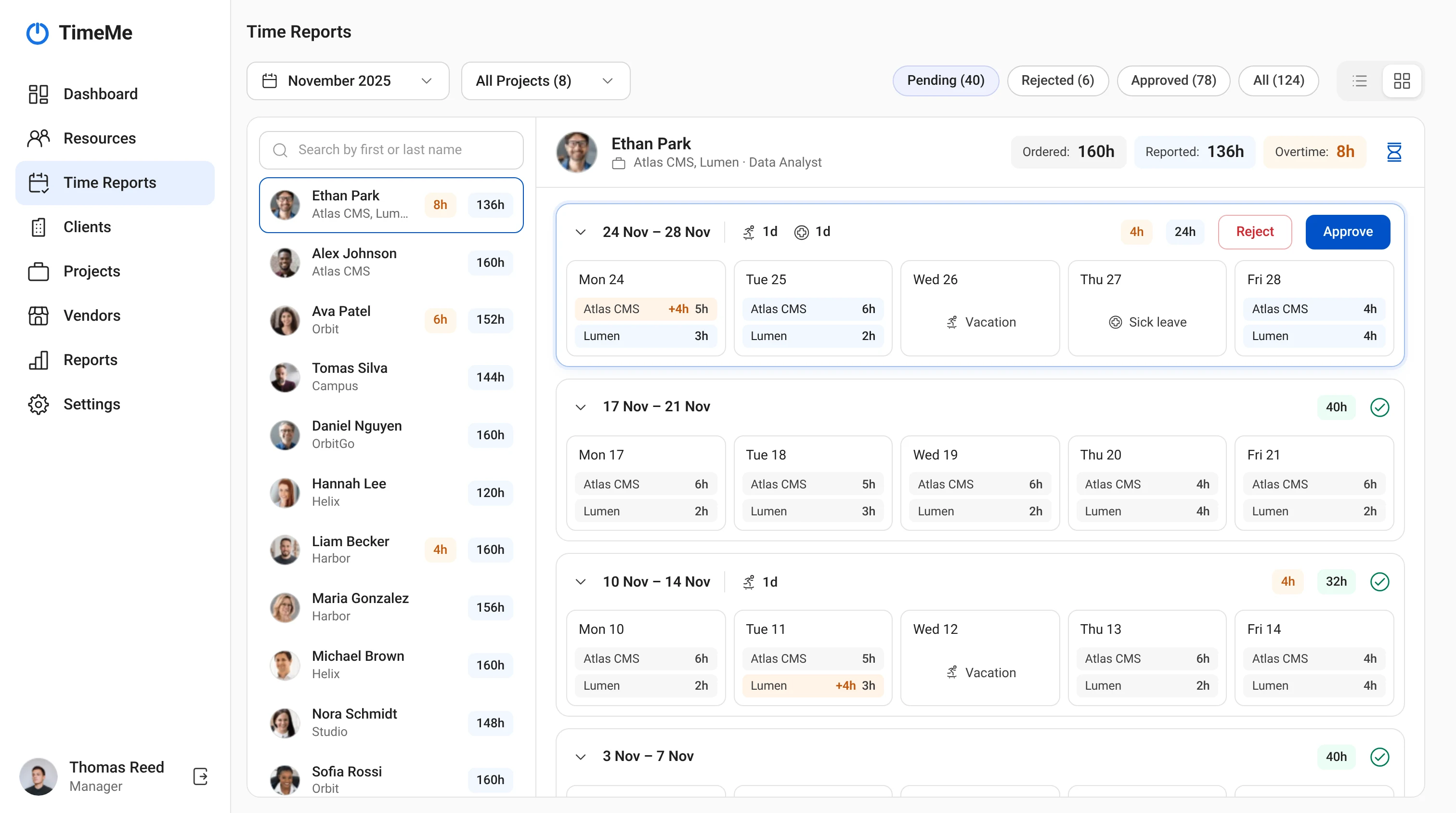
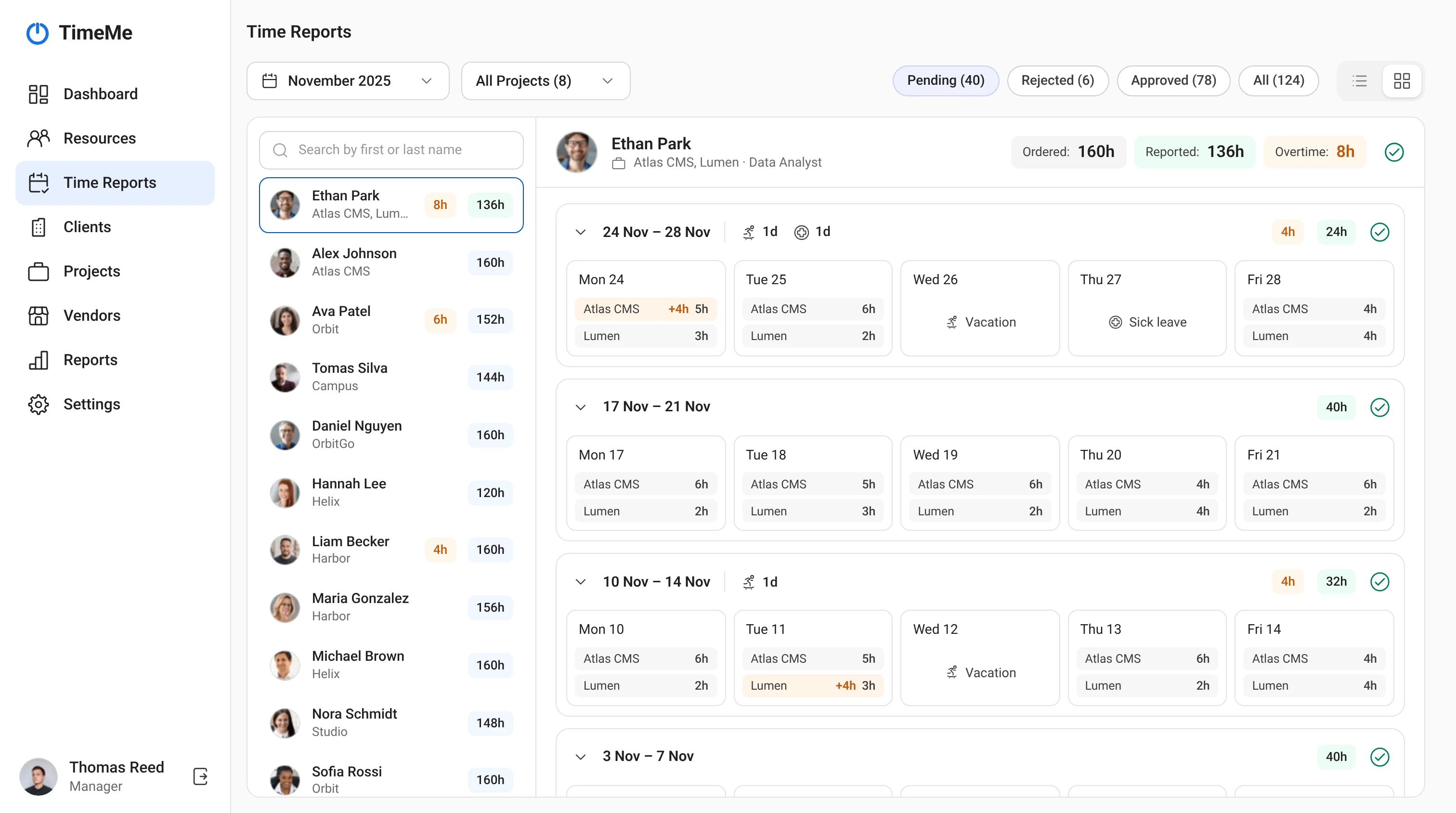
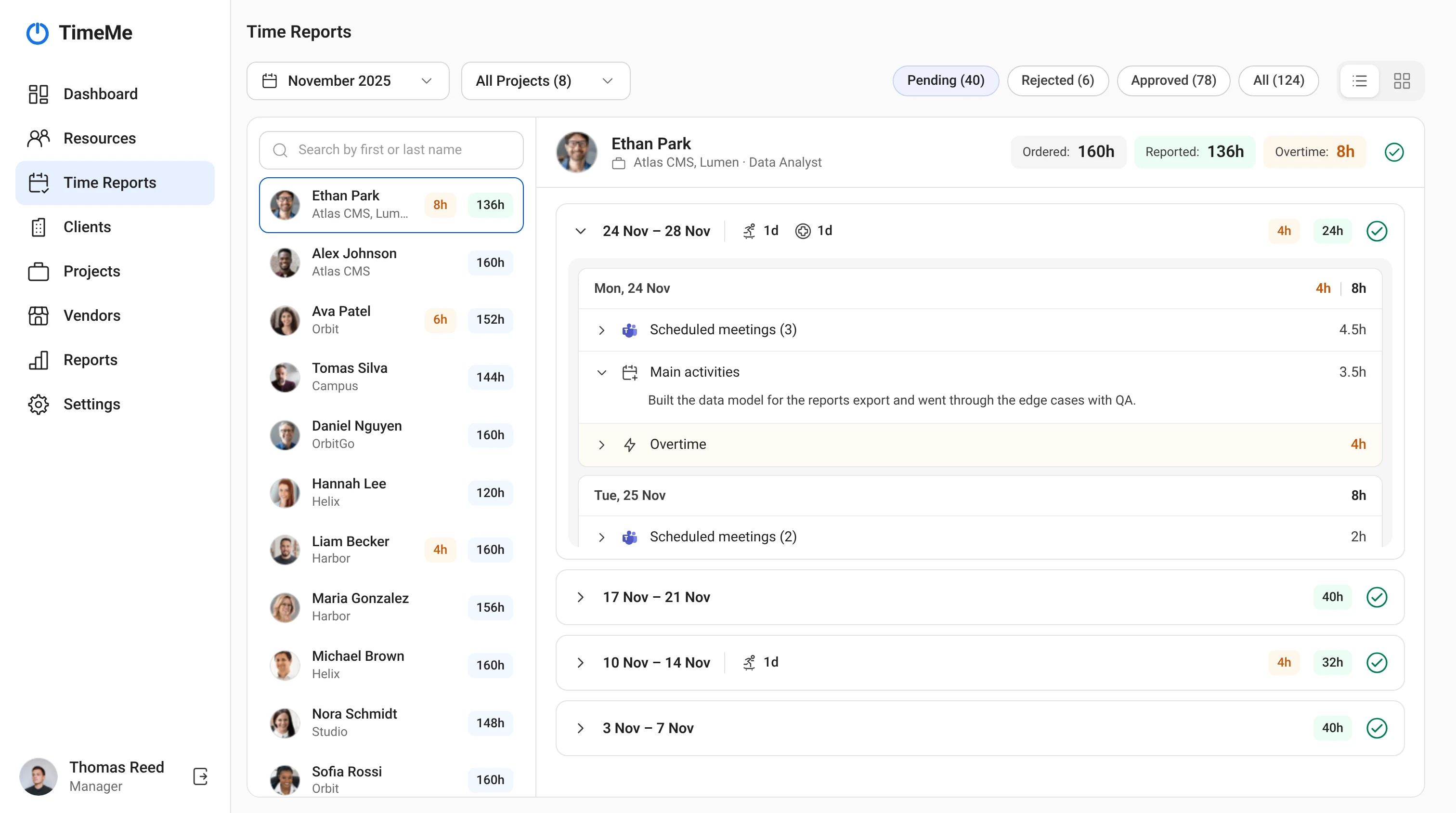
Contractors report by month, managers approve by week. I made the week the unit of approval: each week has its own totals, status and Approve or Reject, in a list or in the month as the contractor filled it in.
The essentials,on the phone.
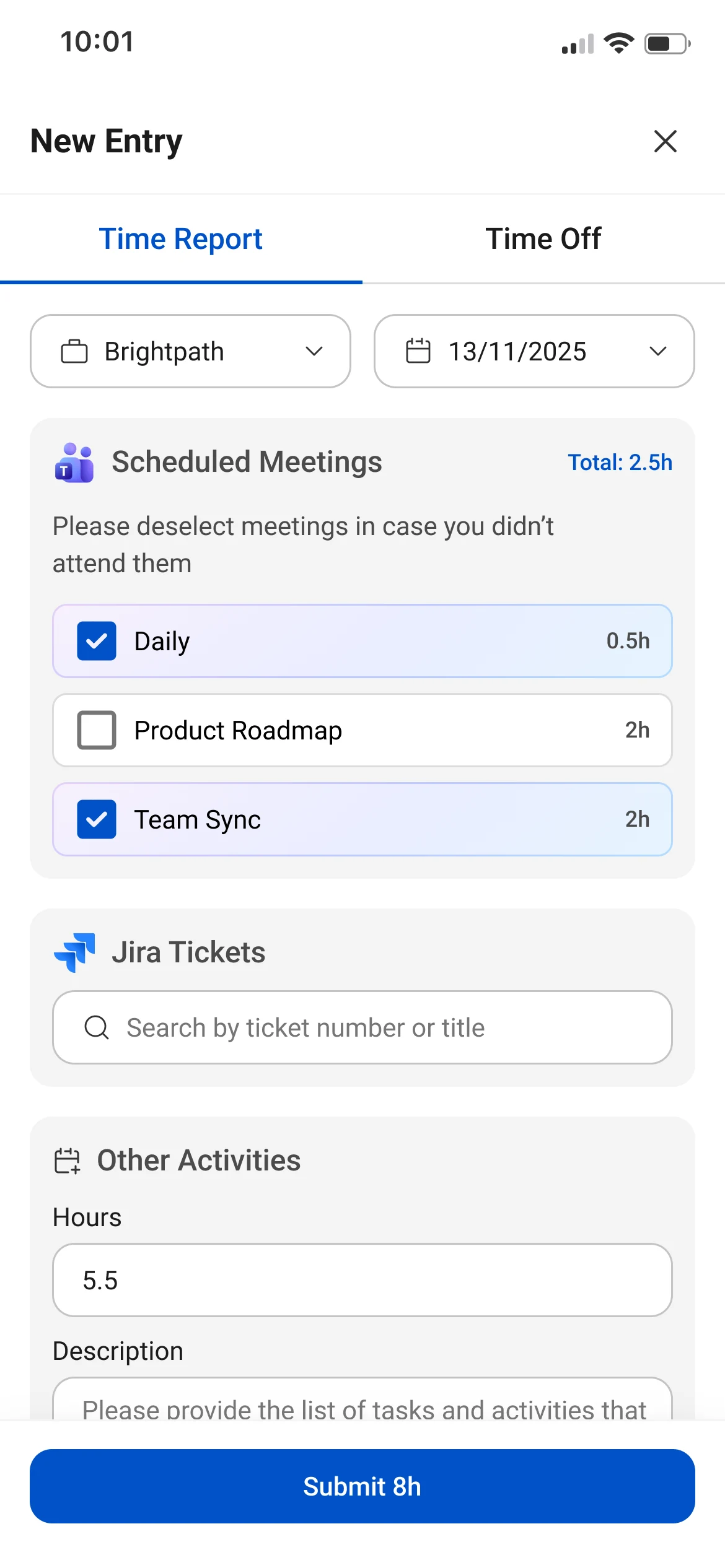
Some of the platform’s core features in a smaller app, for contractors and managers away from the desk.
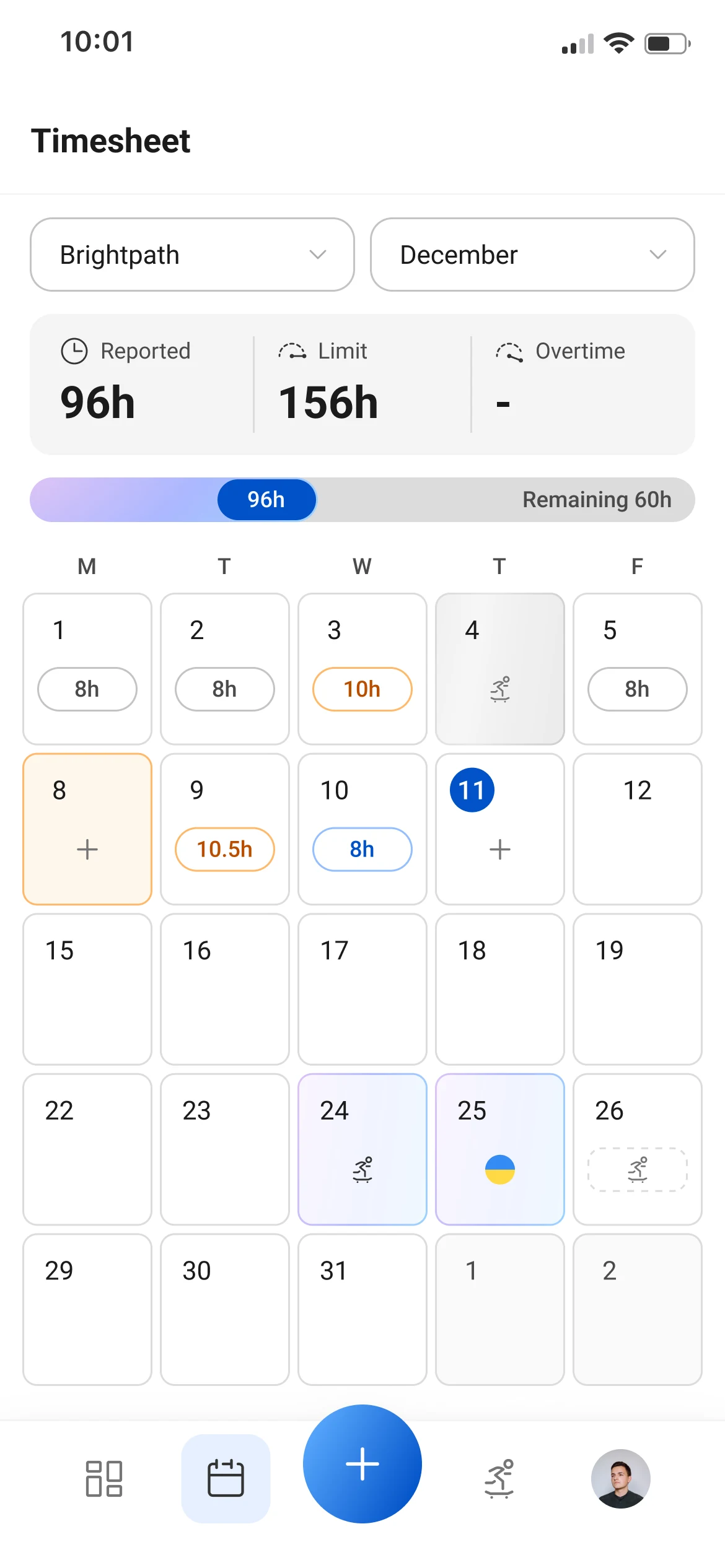
Hours reported against the limit, with a bar that shows how far into the month you are.
Your whole month at a glance: hours per day, time off, holidays.
Meetings come in from the calendar. Untick the ones you skipped.
Log the day in a few taps, then submit.
- 1Hours reported against the limit, with a bar that shows how far into the month you are.
- 2Your whole month at a glance: hours per day, time off, holidays.
- 3Meetings come in from the calendar. Untick the ones you skipped.
- 4Log the day in a few taps, then submit.
AI approves the usual.Managers get the exceptions.
Most weeks are ordinary. The product checks each one first: usual hours, descriptions that make sense, work that matches the assigned tasks. Those are approved on their own. Anything unusual goes to the manager.
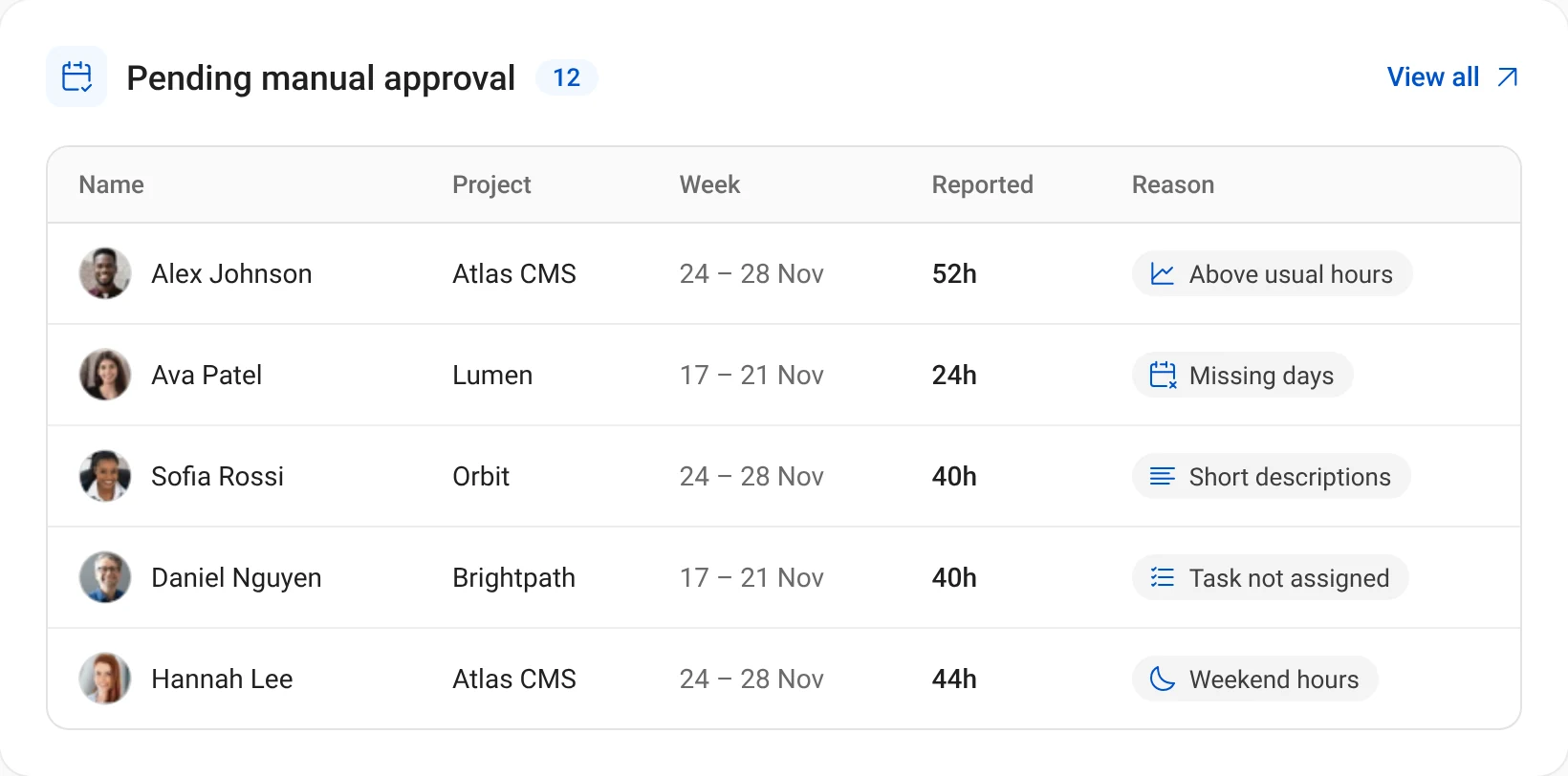
The widget a manager sees first: only the weeks the check stopped, and why.
Contractors can also ask Claude to log their hours. The entry lands in the timesheet as pending and goes through the same check.
 Claudeconnected to TimeMe4h
I designed it, used it,and wrote the rules it was built on.
I designed the screens, then used them like everyone else.
The product went into real use straight away. The client moved his own company onto it and worked in it while it was being built, and I reported my own hours in it too. Feedback never stopped, from both sides, and problems showed up in real work, not in a review meeting.
The tools changed halfway. The component rules didn’t.
It started the usual way: weekly calls, messages, and rules and standards for every component written in Figma. Halfway through, the whole team moved to working with AI. The foundation was already there, and it held: everything new was still built on the same components and rules.
Learning the new way while shipping with it.
We started when AI was barely part of product work and finished when it was everywhere. There was no playbook, so the developers and I learned the new tools while shipping, and built our way of working together as we went.